
Have you ever tried to form a band but found it difficult to figure out what possible combinations could be made? Well, the example seems a bit stretched. But we do face problems regarding arrangements and combinations in our everyday life. From choosing which friends to go to a concert with (since you were only able to get 4 tickets) or deciding which seating arrangement would let you sit next to your crush in the cinema are all such problems.
Do not worry, Oz is here to unleash the power of Excel in solving these problems. So, it’s time to get started and form a band!
 The Formula
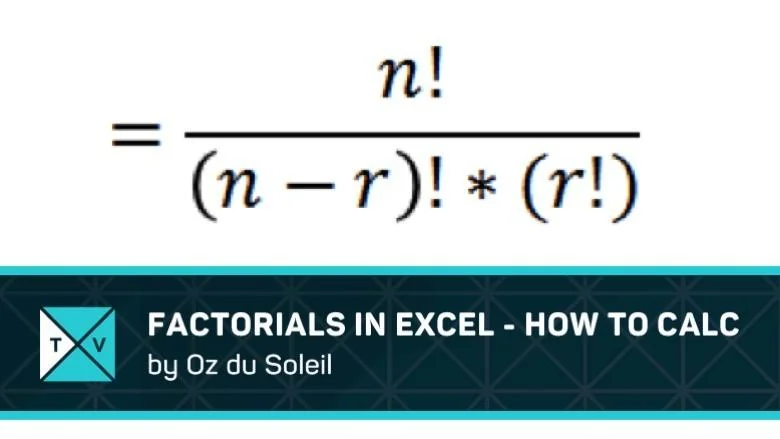
For example, if you had to calculate how many groups of 4 you can form out of 6 people, there is formula you can use. It does seem odd, but we will make it work.
N represents the total number of people you have. So, n = 6 for this problem. R is the number of people in the group you want to form. So, r = 4 in our example.
Now what is this ‘!’ doing in the equation. Well, Excel knows what it is. The given formula is a fraction: numerator is ‘n!’ and the denominator is a product of ‘(n-r)!’ and ‘r!’. If we can evaluate these expressions, then we can form the fraction and have the result with us.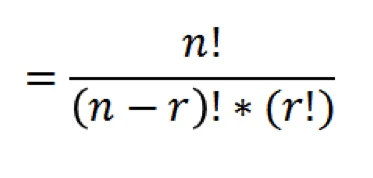
 Factorial
The ‘!’ actually represents a factorial. So, what is meant by ‘3!’? Just use the built-in Excel function =FACT(3) and you will see which number it represents. Hence, for our example, we will input into Excel the formula =FACT(6)/(FACT(6-4)*FACT(4)) and that’s all. The answer turns out to be 15.
Remember, whatever the ‘!’ applies to, put that inside the function FACT(…) and you can then proceed with dealing them as ordinary numbers.
 A Neat Trick
This complicated formula has been built into Excel to ease our problems. In our example, we had n=6 and r=4. We can directly use =COMBIN(6,4) to see that 15 groups of four can be from 6 people.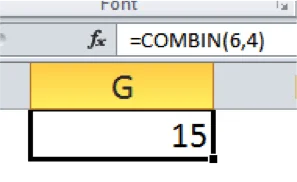
Get The Download
What’s next?
Remember that Excel has been built to solve many of your problems. The next time you stumble on to a problem you cannot get your head around, probably Excel can do it for you!
Also, share this newly discovered function with your friends. And, know that combinations have very interesting properties, so go play with them. Compare =COMBIN(6,4) and =COMBIN(6,2) and see what is being talked about.

Comments (2)
Historical comments preserved from the WordPress archive. Commenting is no longer active.
Nice one
Thank
Let’s cell A1 contain n! such as 4! then cell C1 contain formula like this
=FACT(1*LEFT(A1,LEN(A1)-1))