
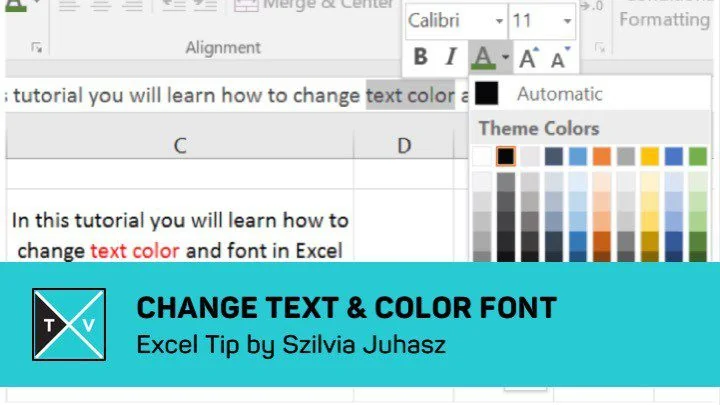
Have you ever thought to change text color and font in Excel?
Till now, we are only aware of how to change color and font for the entire cell contents.
Yes, right? But, sometimes you would be needed to change text color and font. I mean changing the color and text to little piece of the text. Do you know how to do it or ever thought of doing so?
Do not worry. Our very own Excel expert Szilvia Juhasz lets us know how to do it simply. The trick to change text color and font is really useful, attractive and mostly very simple.
What are you waiting for?
First, rather than jumping in to the trick, let us look at how to color contents in a cell.
1 – How to Change Color and Font of a Cell Contents in Excel
- You just need to select the cell which you are interested in.
- Click on the ‘Home’ tab and then under ‘Font’ section, click on ‘Font Color’ to select the color you want to apply to the cell contents.
- To change the font and font size, select the font and font size which you want from the font and font size dropdowns respectively.
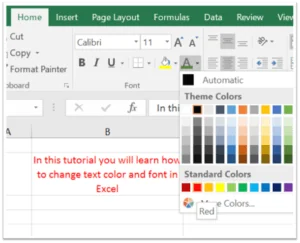 Did you see that?
Color, font and font size got applied to all contents of the cell. This is the general and straight forward way to change color and font in Excel. This is what we know and what we are doing till now. Now, the actual trick comes in to the picture. Let us see, how we can change text color and font in Excel rather than whole contents of the cell.
The actual technique follows as,
2 – The Trick to Change Text Color and Font in Excel
Changing text color and font in Excel can be done in two simple steps as follows,
- First select the cell you want and select the particular text in the formula bar which you want to color.
- Click on the ‘Font Color’ of ‘Font’ section under ‘Home’ tab. Next, select the color which you want to apply.
- Hurray! Only selected piece got selected. Now, if you want to change the font or font style you can select the font from the ‘Font’ dropdown under the same ‘Home’ tab.
- You can even apply these changes by right clicking on the selected text.
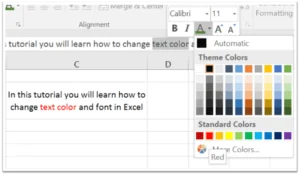
These are the simple steps to change text color and font in Excel. Now you could see that, only particular text of the cell contents is colored.
Amazing Trick! Thanks Szilvia Juhasz for this interesting trick.
3 – Advantage of this Trick
This trick can be used when you want users to input values to the Excel. Let us take an example of an Excel which has VBA Code taking SQL Query as it’s input. Let us say that SQL Query has two attributes ‘StartDate’ and ‘EndDate’. To warn the users that, they need to provide these two values to run the VBA, you can add red color to these texts in the Query. In this way, users will be aware that they need to input these values to proceed further.
What’s next?
Give it a try buddies! Also, if you have any excel tips or want to add anything to this trick, please do share with us through comments.
Share this trick with your friends and colleagues. Enjoy the trick!
