
Excel TV ExcelTV

Conditional Formatting for a Clean Spreadsheet

Updated
Conditional Formatting for a Clean Spreadsheet

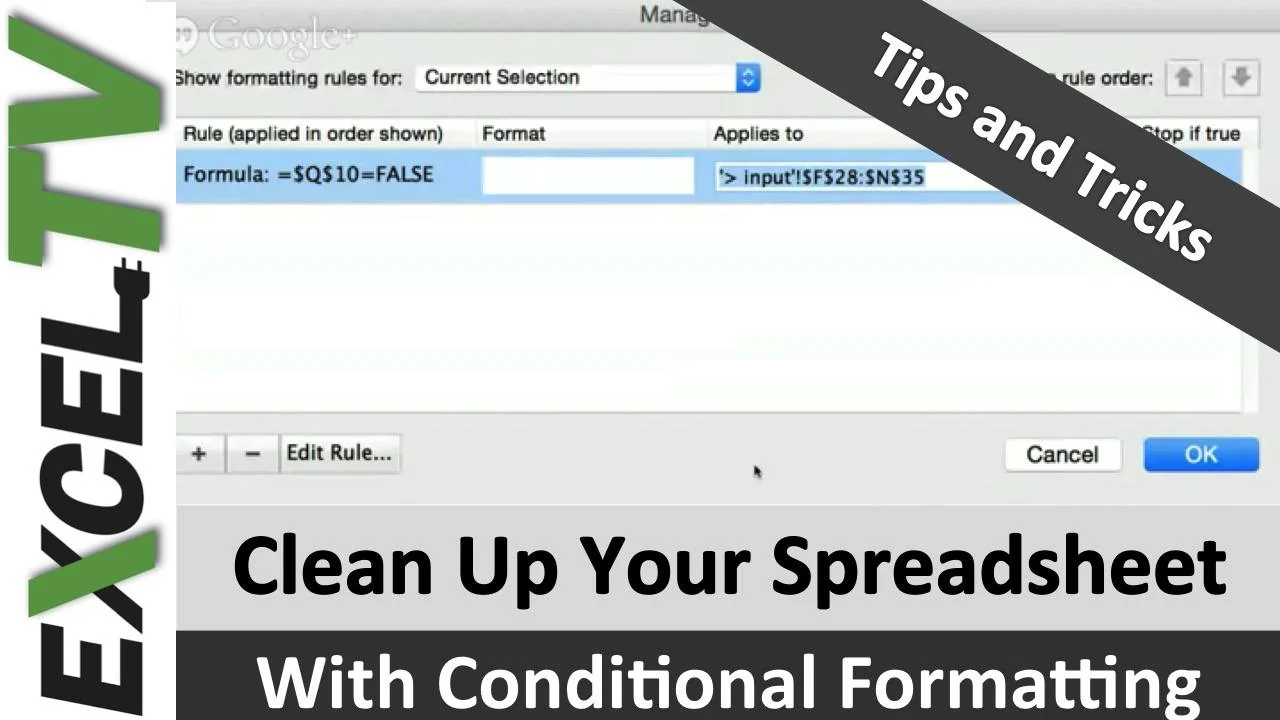
Nick Green of http://EchoXL.com shows you how he uses conditional formatting to create a clean looking worksheet for his users.

What He Does

Nick uses toggle buttons to select different features on his graphs.  As the toggle buttons are selected, text that is no longer relevant seems to disappear from the spreadsheet.  Nich uses Conditional formatting so that as the toggle is selected, the text color is changed to white.  Tis causes it to blend with the background.

This is a good tip to create a clean environment for your end-user.

What’s Next?

Leave a message or question for Nick in the comments section below.  Also hit one of the social sharing buttons to share this with the world.

Written by

Rick Grantham
Rick GranthamSix Sigma Black BeltCo-founder, Excel TV

Business Intelligence Product Manager, VENUS Fashion Inc.

  • Business Intelligence
  • Data Analytics
  • Strategy
  • Team Building
Rick Grantham, a Six Sigma Black Belt and co-founder of Excel.TV in 2014, is currently serving as the Business Intelligence Product Manager at VENUS Fashion Inc. since March 2023. He has extensive experience in data analytics, strategic thinking, and team building, having held various leadership roles in renowned companies, such as Vice President of VantagePoint Business Solutions and Senior Director of Business Intelligence Solutions at EPI-USE. With a strong background in creating data-driven solutions and improving business processes, Rick has consistently demonstrated success in delivering exceptional results and boosting revenue throughout his career.

Read more articles by Rick Grantham

Editorial standards

Fact Checking & Editorial Guidelines

Every article on Excel TV is held to a published editorial standard. The goal: accurate, current, and useful — without filler.

  1. Expert review. Drafts on technical Excel topics are reviewed by a contributor with hands-on, working knowledge of the feature being covered.
  2. Source validation. Claims about Excel behavior are tested in current Microsoft 365 builds. Third-party product claims are sourced from the vendor's own documentation.
  3. Disclosure. Affiliate links, sponsorships, and any commercial relationships that influenced a piece are disclosed in-line and at the foot of the article.
  4. Updates. Articles are revisited when Microsoft ships changes that affect the content. The most recent revision date is shown on every post.

Spot a problem? Email editor@excel.tv and we will look at it.

Subject-matter review

Reviewed by Subject Matter Experts

Technical Excel articles are reviewed by contributors with verifiable, hands-on experience in the topic — not generalist editors.

  • Qualified reviewers. Reviewers include Microsoft Excel MVPs, working business-intelligence practitioners, and Excel TV editorial staff. See each author's page for credentials.
  • Current to a known Excel build. Procedural articles state which Excel version they were validated against. Where Microsoft has since changed behavior, the article carries an inline update note.
  • Clarity check. Reviewers verify steps are reproducible by a reader at the assumed skill level — not just technically correct in a vacuum.

Want to contribute or review for Excel TV? See the about page.