
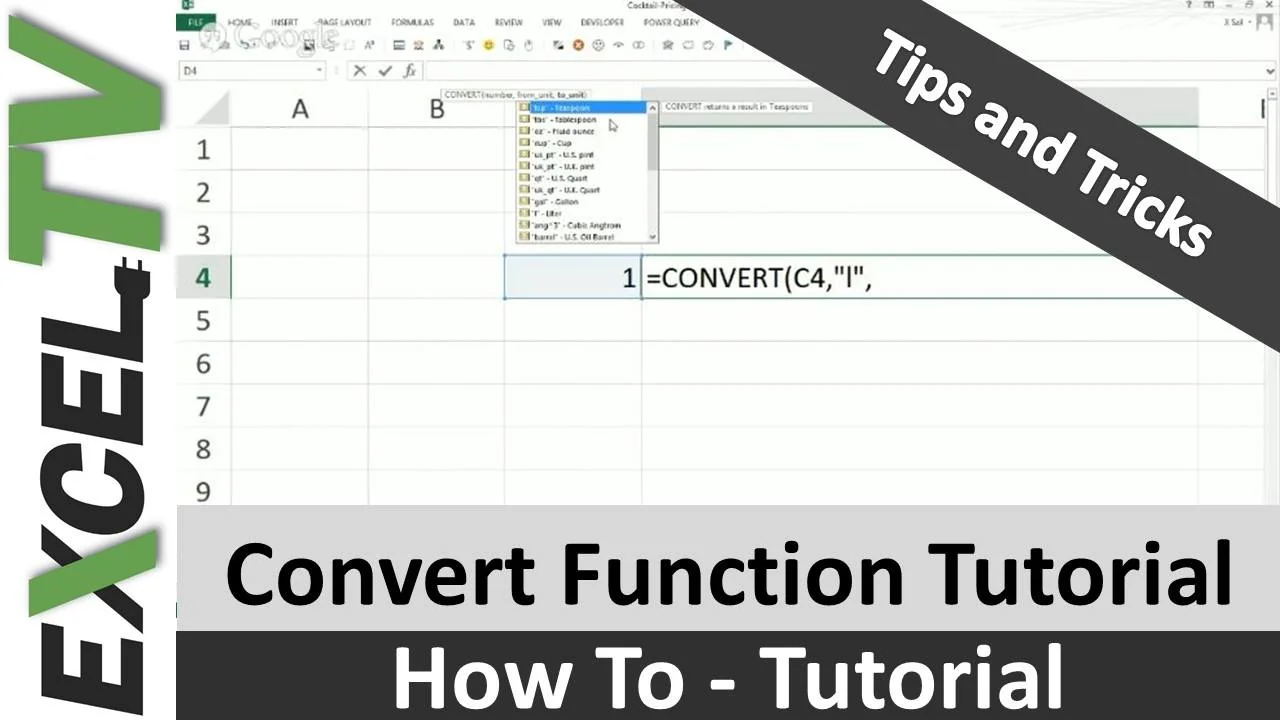
Tired of googling how to convert inches into meters or how many liters a gallon equates to? It is high time to stop being overwhelmed whenever you next face a unit conversion! And Excel is here to help.
Szilvia Juhasz (aka XSzil) is there to teach us the ins and outs of this ‘where-were-you-all-my-life’ function.
Let’s begin.
1- The Convert Function In Excel
Type “=CONVERT(” in any cell you should start seeing the options. First specify the number you want to convert. Then specify the unit of the number. Lastly, specify the unit you want this number to get converted into.
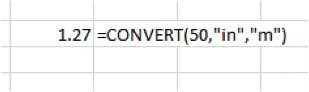 Convert Function In Excel
So, for example, if I want to convert 50 inches into meters, I will use =CONVERT(50,”in”,”m”) to do it.
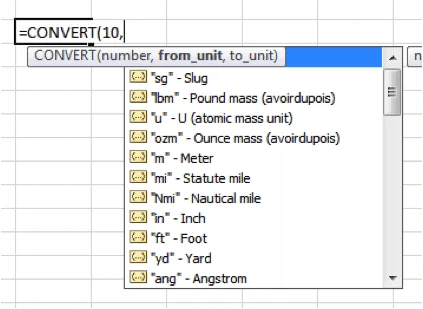
Note that you do not need to remember that “in” stands for inches or “m” stands for meters. Once you reach the stage of putting in the unit, available options (and their keys) will show up themselves, as given in the picture on the right. So, just select from there.
2 – Advantages
One feature which makes this function robust is that you cannot convert quantities into anything you like. So, units of area cannot be converted into units of volume. Similarly, units of time cannot be converted into units of distance. Once Excel asks you to input the unit you want to convert a number to, it restricts the options to the units that make sense. So, you do not have to worry about meaningless conversions.
Another advantage, un-insightfully, is the time you save from searching the internet repeatedly for such conversions.
3 – A Disadvantage
One disadvantage is that the list of units does not include the milli’s, the centi’s and the deci’s. For example, you may be able to convert inches into meters. But you have to manually multiply the answer with 100 if you want conversion into centimeters instead.
This might have been done by Microsoft to prevent the list of units from becoming very messy. But, of course, it comes with the assumption that the user knows how to convert, let say, meters to millimeters.
What’s next?
The next time you have to convert quantities or units, remind yourself that Excel is ready and equipped for your needs.
Share this newly discovered function with your friends. Remember, a friend in need is a friend indeed!

Comments (3)
Historical comments preserved from the WordPress archive. Commenting is no longer active.
Point #3 (Disadvantages) is not quite correct. Or at least not correct in all cases. When you are working with the metric units you can use a huge variety of prefixes to denote the multiples of the units. If you go to the help file associated with the function, you can see the list of prefixes (the list is copied from the help file and listed below).
Prefix Multiplier Abbreviation
exa…..1.00E+18….”E”
peta….1.00E+15….”P”
tera…..1.00E+12….”T”
giga….1.00E+09….”G”
mega..1.00E+06….”M”
kilo……1.00E+03….”k”
hecto…1.00E+02….”h”
dekao..1.00E+01….”e”
deci…..1.00E-01….”d”
centi….1.00E-02….”c”
milli……1.00E-03….”m”
micro…1.00E-06….”u”
nano….1.00E-09….”n”
pico…..1.00E-12….”p”
femto…1.00E-15….”f”
atto…..1.00E-18….”a”
Thanks for the clarification Keith. You are correct.