
Excel TV ExcelTV

How-to: Use Excel Formulas in Word

Updated
How-to: Use Excel Formulas in Word

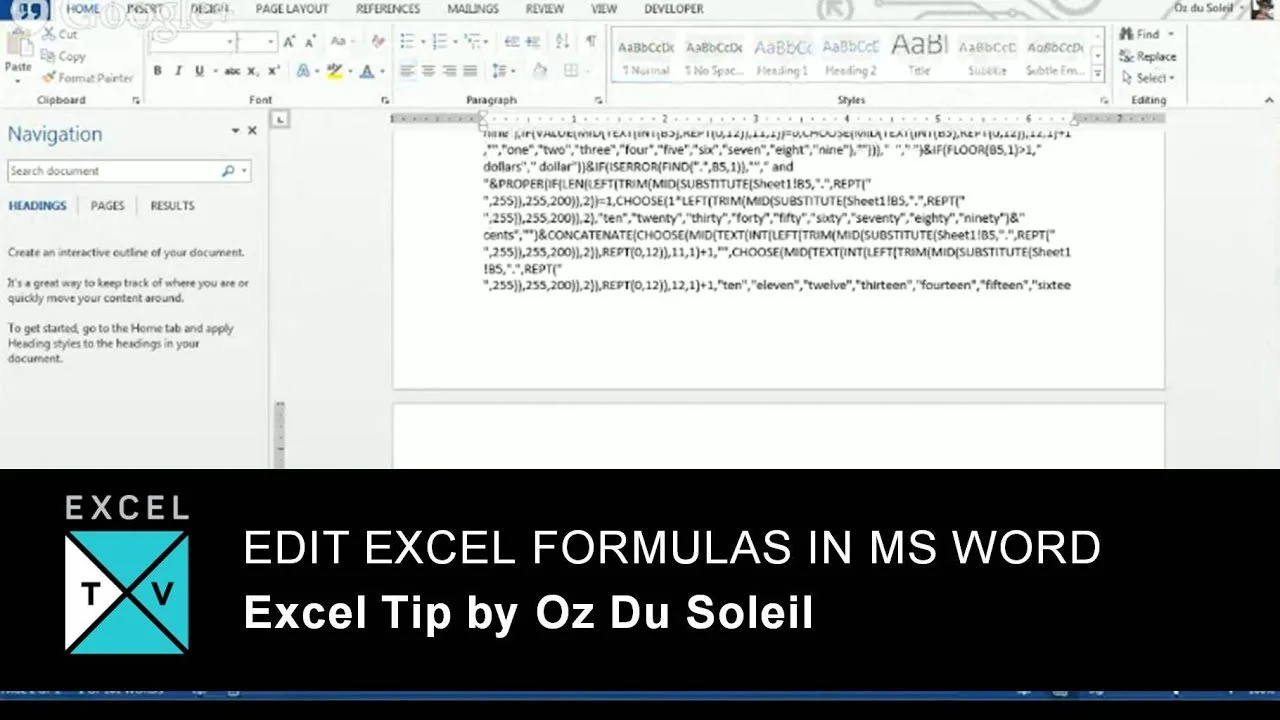
Can you use Excel formulas in Word? Yes! We all use Excel Spreadsheet and Microsoft Word document every time and we use them individually. But, do you know that Word document can be helpful if you face any problem with Excel Formulas? Yes, you heard it right. You can edit Excel Formulas in Word document easily. Let us say if you have any error in Excel formula and if that formula is too big to find and replace, then you can edit that Excel formula in Word document easily. Excel MVP Oz explains how it can be done.

Let’s get started!

1 – Copy Excel Formula

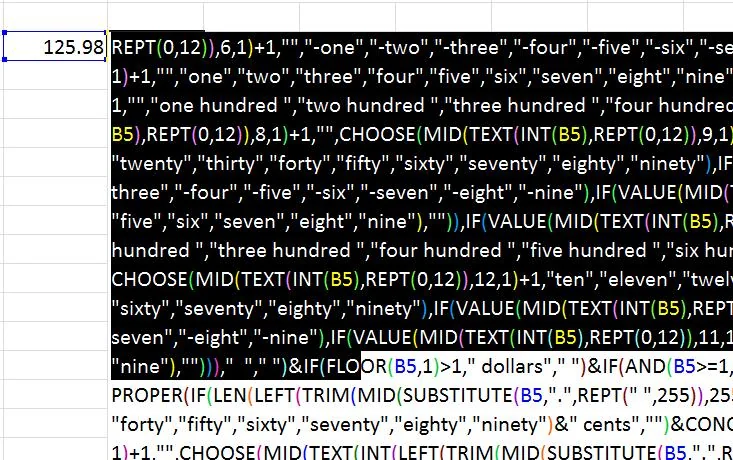
Let us say you have the large formula and it has some error referring some sheet. If there are lot many occurrences of that text and if you want to replace that text, then it would be very difficult to find and replace that text. So, simply copy the entire Excel Formula and head over to next step.
1

2 – Paste Copied Formula in Word Document

Now paste the copied Excel formula in Word Document. Right now just paste it and do not edit right away. Just make sure of what you want to edit and make a note of a number of occurrences which you want to replace. If the count is one or two, then go ahead and change the text. But, if the count is more, then head over to next step.

3 – Edit Excel Formula in Word

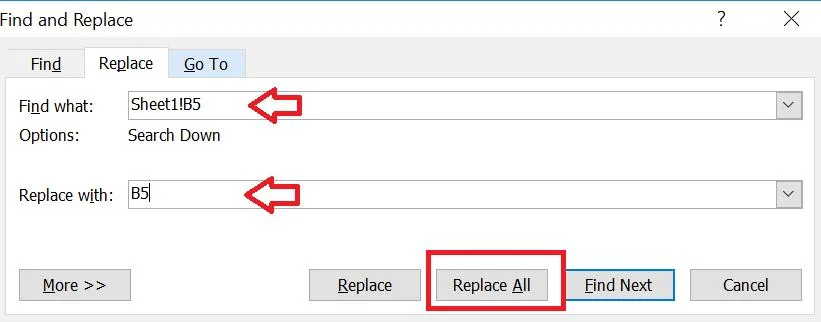
It is the time to edit Excel formula in Excel. If the occurrence of text which you want to edit is one or two, then we can do it directly. But, what if the count is more? Then, we would use the ‘Replace’ option in Word. Select the text which you want to replace and click on ‘Replace’ in ‘Editing’ section.
2

It would show ‘Find and Replace’ dialog box. Selected text will be shown in ‘Find what’ field and enter the new text in ‘Replace with’ field. Click on ‘Replace All’ and it would replace the selected text in Excel formula with the correct text and removes the error in the formula.

4 – Give it a Try!

This is the simple and easy way to edit Excel formula in Word. Give it a try and let us know what you think about it.

What’s next?

As explained above, you too experiment with it. If you find this trick helpful, then please do share this with your friends or colleagues. If you have anything to add, then please do share with us through comments.

Written by

Sridhar Belide
Sridhar BelideB.Tech. Computer Science, JNTUH10+ years in software engineering

Software Engineer, Wells Fargo

  • React
  • UI Frameworks
  • Front-end Development
Sridhar Belide is a skilled software engineer with over a decade of experience in the industry. Currently working at Wells Fargo since December 2018, he focuses on developing UI frameworks for front-end applications using React. Before joining Wells Fargo, Sridhar spent five years and four months at Tata Consultancy Services, where he held the position of IT Analyst. He also has experience as a Community Manager for Impact SoftTech Pvt. Ltd. EALP and as a Software Research and Development Engineer at NSN - Nokia Solutions and Networks. Sridhar holds a Bachelor of Technology (B.Tech.) in Computer Science from JNTUH, demonstrating his strong foundation in the field.

Read more articles by Sridhar Belide

Editorial standards

Fact Checking & Editorial Guidelines

Every article on Excel TV is held to a published editorial standard. The goal: accurate, current, and useful — without filler.

  1. Expert review. Drafts on technical Excel topics are reviewed by a contributor with hands-on, working knowledge of the feature being covered.
  2. Source validation. Claims about Excel behavior are tested in current Microsoft 365 builds. Third-party product claims are sourced from the vendor's own documentation.
  3. Disclosure. Affiliate links, sponsorships, and any commercial relationships that influenced a piece are disclosed in-line and at the foot of the article.
  4. Updates. Articles are revisited when Microsoft ships changes that affect the content. The most recent revision date is shown on every post.

Spot a problem? Email editor@excel.tv and we will look at it.

Subject-matter review

Reviewed by Subject Matter Experts

Technical Excel articles are reviewed by contributors with verifiable, hands-on experience in the topic — not generalist editors.

  • Qualified reviewers. Reviewers include Microsoft Excel MVPs, working business-intelligence practitioners, and Excel TV editorial staff. See each author's page for credentials.
  • Current to a known Excel build. Procedural articles state which Excel version they were validated against. Where Microsoft has since changed behavior, the article carries an inline update note.
  • Clarity check. Reviewers verify steps are reproducible by a reader at the assumed skill level — not just technically correct in a vacuum.

Want to contribute or review for Excel TV? See the about page.