
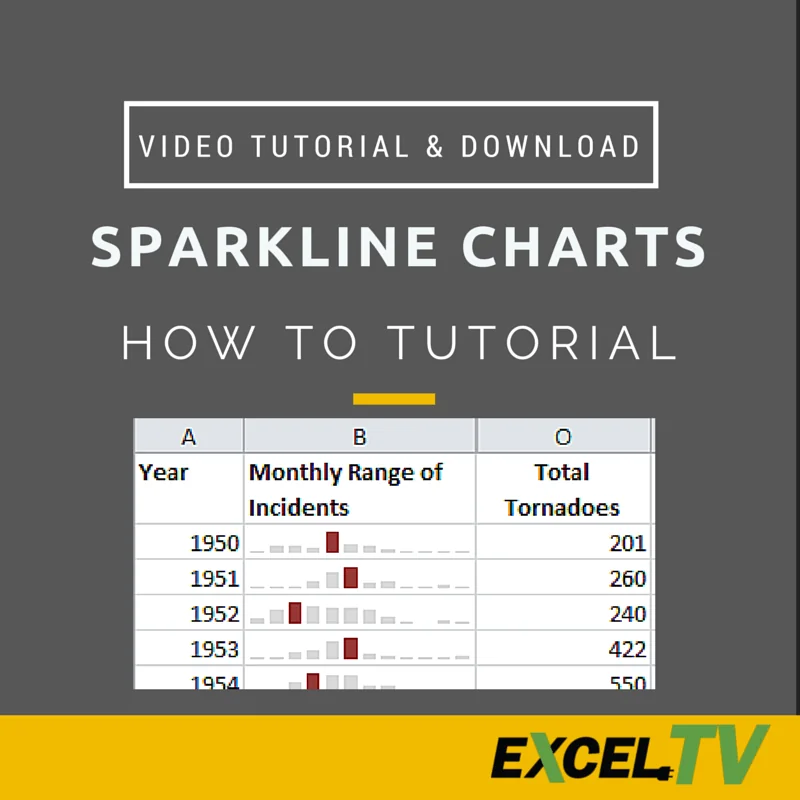
Sparklines allow quick and easy visualization of data. These charts do not require you to go through the hassle of formatting chart axes.
As shown in the picture on the right, Sparkline charts fit in a single cell. This allows for easy treatment and formatting, as will be explained below. They are also a cool addition to your dashboard. And Excel MVP Jordan Goldmeier is here to show us how it is done.
So, let’s start.
Step 1: Sparkline Chart
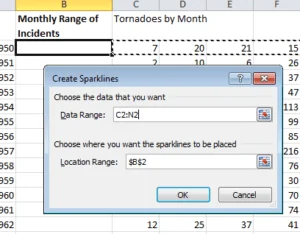
Go to the cell where you want to make the chart. Now go to Insert tab and, under the Sparklines section, select ‘Column’. Notice that the selected cell is already in the location. So, just select the data and press OK.
You will see the Sparkline chart appearing in the selected cell.
Step 2: Formatting – Colors
Select the chart and go to the Design tab. Under the Style section, you would find many color schemes that you could use. You can also use ‘Sparkline Color’ option if you wish.
Step 3: Formatting – High Point
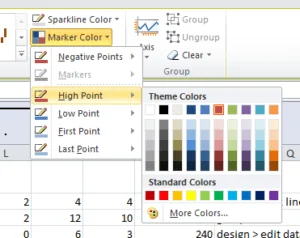
You might want to highlight the highest point in your Sparkline chart. There is a very simple way to do it quickly. Under the Design tab, within the Show section, just check ‘High Point’. You will see that the highest bar is of a different color now. Within the Style section, in ‘Marker Color’, you can choose which color to show the high point in.
You could do the same for lowest points, first points, last points or negative points.
Step 4: Functional Use
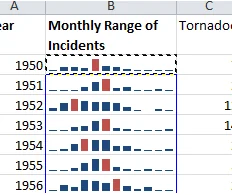
Sparkline charts can be used as formulae in a cell as far as copy & paste is concerned. So if your data is in rows, and you want a Sparkline chart for each row, just copy and paste it like you would do if it were a formula.
Step 5: Cleaning Up
Once you have the Sparkline charts of your data, you might want to hide that data.
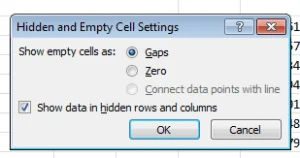
You can group that data using the ‘Group’ tool in the Outline section under the Data tab. After hiding the data away you would see that the Sparkline charts will disappear. To prevent this from happening, select the chart and go to the Design tab. Under the ‘Edit Data’ feature, select “Hidden & Empty Cells…”. Now check the box as shown in the picture on the right and click OK.
Now, when your grouped data is minimized or hidden away, the Sparkline charts will still be visible.
Get the Download
What’s next?
Use this whenever you want a quick visualization of some data.
And, most importantly, do not forget to SHARE it!!
