
Excel TV ExcelTV

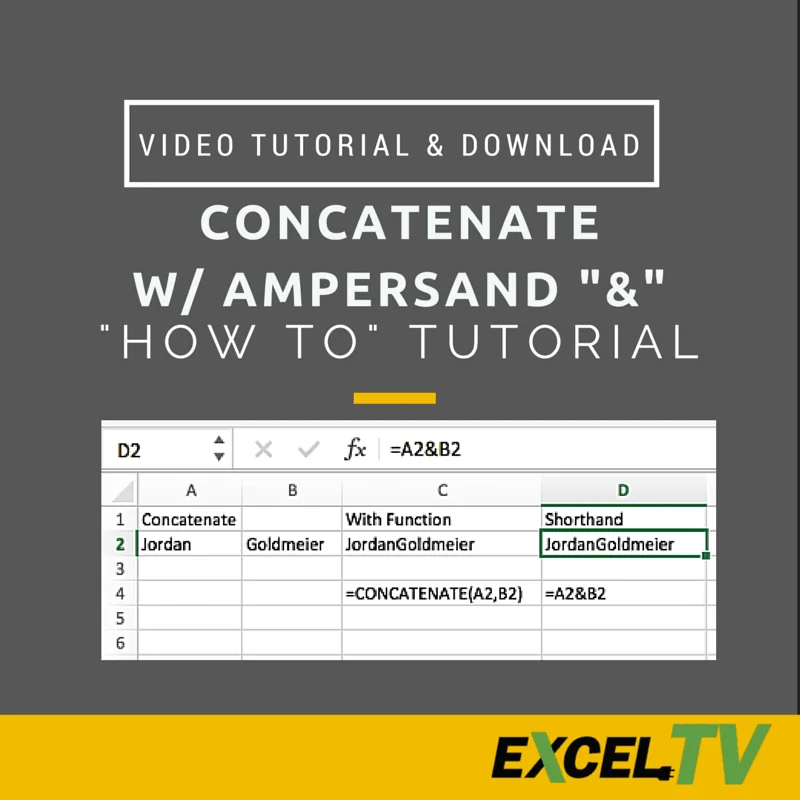
How To Concatenate In Excel – Ampersand Shortcut

Updated
How To Concatenate In Excel – Ampersand Shortcut

Using Ampersand Formula In Excel

Excel MVP Jordan Goldmeier notes that although this quick tip if fairly straightforward, a lot of people don’t know it.

First off… Define Concatenate

In the simplest terms… its slamming the contents of cells together. Like having the first name in one cell and the last name in a second cell, and wanting an end result that is the full name in one cell.

Now that’s a simplistic example that doesn’t include the adding of spaces between the first and last name, but lets keep this simple for now.2015-08-30_00-11-01
The Concatenate Formula In Excel

Excel has a built in formula for concatenation.  =CONCATENATE([text1],[text2],…)

Replace [text1] with a reference to a cell that has the first name.

Replace [text2] with a reference to a cell that has the last name.

Wallah… you just slammed some cells together.

But Let’s Get Fancy – The Ampersand

Finding that Concatenate Formula can be some hard work.  Click here, click there.  Who needs that kind of hassle.  Not me.  HELL NO.

So let’s super simplify this thing.

No need for special Excel formulas.  Just use the ampersand.  You may be saying to yourself…

“Hey Self…  What’s an ampersand?”

Glad you asked.  It’s this thing. —–>2015-08-30_00-33-51

I get that it’s very “Tramp Stamp-ish”.  Very… bad tattoo idea that was meant to mean something important… but you don’t really remember now…

That kind of vibe.

But Here Is What You Do

Place the tramp stamp between the references to the two cells and wallah…  You just slammed some cells together.

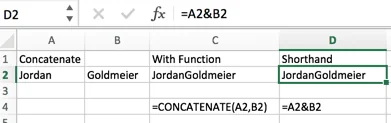
Here is what I mean.
2015-08-30_00-40-47

Where cell A2 is the first name and cell B2 is the last name.  =A2&B2

Get The Download

Written by

Rick Grantham
Rick GranthamSix Sigma Black BeltCo-founder, Excel TV

Business Intelligence Product Manager, VENUS Fashion Inc.

  • Business Intelligence
  • Data Analytics
  • Strategy
  • Team Building
Rick Grantham, a Six Sigma Black Belt and co-founder of Excel.TV in 2014, is currently serving as the Business Intelligence Product Manager at VENUS Fashion Inc. since March 2023. He has extensive experience in data analytics, strategic thinking, and team building, having held various leadership roles in renowned companies, such as Vice President of VantagePoint Business Solutions and Senior Director of Business Intelligence Solutions at EPI-USE. With a strong background in creating data-driven solutions and improving business processes, Rick has consistently demonstrated success in delivering exceptional results and boosting revenue throughout his career.

Read more articles by Rick Grantham

Editorial standards

Fact Checking & Editorial Guidelines

Every article on Excel TV is held to a published editorial standard. The goal: accurate, current, and useful — without filler.

  1. Expert review. Drafts on technical Excel topics are reviewed by a contributor with hands-on, working knowledge of the feature being covered.
  2. Source validation. Claims about Excel behavior are tested in current Microsoft 365 builds. Third-party product claims are sourced from the vendor's own documentation.
  3. Disclosure. Affiliate links, sponsorships, and any commercial relationships that influenced a piece are disclosed in-line and at the foot of the article.
  4. Updates. Articles are revisited when Microsoft ships changes that affect the content. The most recent revision date is shown on every post.

Spot a problem? Email editor@excel.tv and we will look at it.

Subject-matter review

Reviewed by Subject Matter Experts

Technical Excel articles are reviewed by contributors with verifiable, hands-on experience in the topic — not generalist editors.

  • Qualified reviewers. Reviewers include Microsoft Excel MVPs, working business-intelligence practitioners, and Excel TV editorial staff. See each author's page for credentials.
  • Current to a known Excel build. Procedural articles state which Excel version they were validated against. Where Microsoft has since changed behavior, the article carries an inline update note.
  • Clarity check. Reviewers verify steps are reproducible by a reader at the assumed skill level — not just technically correct in a vacuum.

Want to contribute or review for Excel TV? See the about page.