
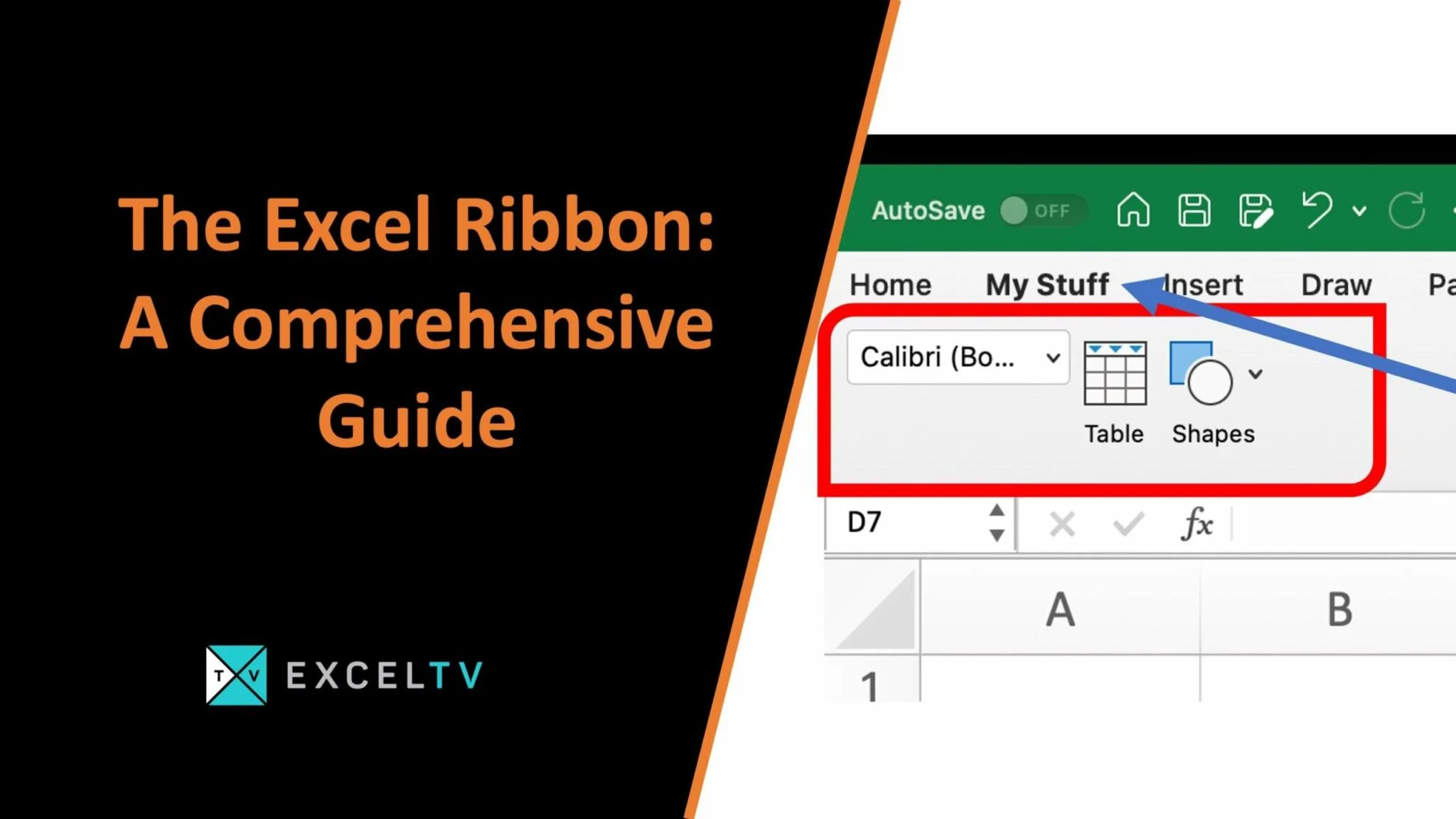
Excel is a powerful spreadsheet software that has been around for decades and is used by millions of people all over the world. It is a software that can help you organize, analyze, and present data in a way that is both visually appealing and easy to understand. However, with so many features and functions, it can be overwhelming to know where to start. That’s where the excel ribbon comes in.
The Comprehensive Guide to the Excel Ribbon: Making the Most of Your Data
The excel ribbon is a toolbar located at the top of the Excel window that provides quick access to all of the features and functions that Excel has to offer. In this comprehensive guide, we’ll explore everything you need to know about the excel ribbon and how to use it effectively.
Understanding the Excel Ribbon
The excel ribbon is made up of different tabs, each of which corresponds to a different group of features. The tabs are:
- File
- Home
- Insert
- Page Layout
- Formulas
- Data
- Review
- View
By clicking on each tab, you can access the different groups of features that are associated with that tab. For example, if you want to insert a chart or table into your spreadsheet, you would click on the Insert tab.
Making the Most of the Excel Ribbon
The excel ribbon is an incredibly useful tool, but only if you know how to use it effectively. Here are some tips to help you make the most of the excel ribbon:
- Learn the different tabs: As we mentioned earlier, each tab corresponds to a different group of features. Take some time to explore each tab and get familiar with the different features that are available to you.
- Customize the excel ribbon: The excel ribbon can be customized to fit your specific needs. For example, if you use a certain feature frequently, you can add it to the Quick Access Toolbar at the top of the Excel window. This will give you quick access to that feature without having to go to the relevant tab.
- Use keyboard shortcuts: Keyboard shortcuts can be a great way to save time when working with Excel. The excel ribbon provides quick access to many of the most commonly used keyboard shortcuts, so be sure to take advantage of them.
Frequently Asked Questions About the Excel Ribbon
What is the Excel Ribbon?
The excel ribbon is a toolbar located at the top of the Excel window that provides quick access to all of the features and functions that Excel has to offer.
How many tabs are there in the excel ribbon?
There are eight tabs in the excel ribbon: File, Home, Insert, Page Layout, Formulas, Data, Review, and View.
Can the Excel Ribbon be customized?
Yes, the excel ribbon can be customized to fit your specific needs. You can add or remove tabs, change the order of the tabs, and add or remove commands from the tabs.
What is the Quick Access Toolbar in the excel ribbon?
The Quick Access Toolbar is a customizable toolbar that appears at the top of the Excel window. It provides quick access to the most frequently used commands, so you don’t have to go to the relevant tab to access them.
Conclusion
The excel ribbon is an incredibly useful tool that can help you make the most of Excel and your data. Whether you’re a beginner or an advanced user, it’s important to understand how the excel ribbon works and how to use it effectively. By taking the time to learn the different tabs, customizing the ribbon to fit your needs, and using keyboard shortcuts, you can save time and streamline your workflow in Excel.
In conclusion, the excel ribbon is a must-know for anyone who wants to make the most of their data and excel in their work. So, make sure to use it to its full potential and turn your data into meaningful insights.
