
Troubleshooting Excel workbooks of others can be mind-numbing, if not excruciating. There are various tools that VBA experts have developed over the years to help with this process. But there is one great tool that is rarely mentioned.
Developed by Microsoft itself, INQUIRE is available in the Office Professional Plus and Office 365 Professional Plus editions. And Oz is already here to deliver a small, useful tutorial.
Let’s get started!
1 – Enabling INQUIRE in Excel
Enabling this add-in is really simple. Just follow these steps:
- Go to File > Options > Add-Ins.
- Make sure COM Add-insis selected in the Manage box, and click Go.
- Tick the box next to INQUIRE and click OK.
Of course if you have DEVELOPER tab activated, you can access COM Add-ins through it directly. The following image shows what it looks like.

If you can’t see INQUIRE amongst your COM Add-ins, it is because either your version of Microsoft Office doesn’t support it or that your organization’s system administrator has disabled it.
2 – Workbook Analysis
Highlighted in the image above, Workbook Analysis is an indispensable tool for anyone who has to do a lot of reviews or troubleshooting on Excel files.
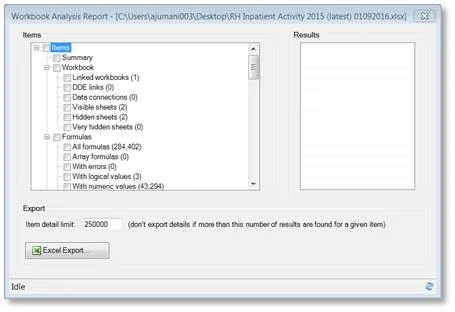
When you click on it, this tool will run a bunch of analyses on your workbook before presenting you with a list of items. From this list, as shown in the image on the right, you can select various things you would like to see the reports on. Once you are done selecting, click on Excel Export and save the file.
3 – The Results
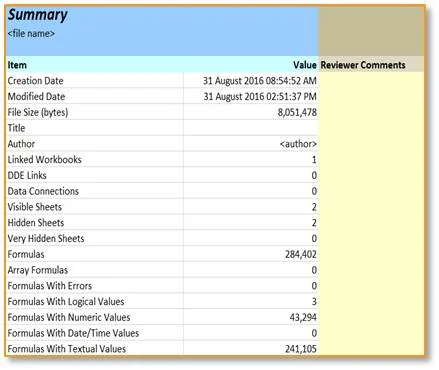
The reports are given in different sheets. And the amount of detail given is just tremendous. From Hidden and Very Hidden sheets to formulas with numeric inputs, everything is reported on. Some of the useful things to look at are as follows:
- Blank referenced cells: to see if some inputs have been unintentionally left out.
- Unused input cells: to see if some numeric values have not been used in any formula.
- Inconsistent formulas: to see formulas which couldn’t have been copied (or dragged) from neighboring cells.
- Numeric constant formulas: to see formulas with hard-coded numbers.
4 – Usefulness
Some of the most apparent uses of this tool would be in troubleshooting a problem, detecting formulas with hard-coded inputs and providing comments on various parts of the file.
What’s next?
Take out an old file and try this tool out. The ease with which you can analyze workbooks through INQUIRE is definitely going to surprise you. And do not forget to write to us with your experiences.

Comments (1)
Historical comments preserved from the WordPress archive. Commenting is no longer active.
any reason why inquire is disabled by default?