

Excel TV ExcelTV

Using the Intersection Operator with Named Ranges

Updated
Using the Intersection Operator with Named Ranges

Hello All! We all are aware that VLOOKUP allows us to find the intersecting value of ranges or lists. It takes the value of one column and finds the corresponding value in the same row of another column. For example, VLOOKUP helps to find the telephone number of a person from the telephone directory. But, Excel book author Szilvia Juhasz says that we do not need VLOOKUP every time and introduces us Intersection Operator here.

How to Use Intersect Operator with Names Ranges

Szilvia Juhasz helps us in letting us know how to use Intersect operator instead of VLOOKUP for small tasks. Intersect operator is represented by space and is said to be an unusual operator in Excel. Let us learn how to use Intersect Operator with an example.

1 – Use Intersect Operator by Specifying Ranges

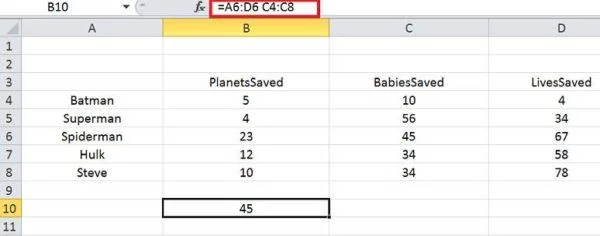
Suppose, say I have an Excel sheet which has superheroes names in Column A and related data in columns B, C, and D as PlanetsSaved, BabiesSaved, and LivesSaved respectively. If we have to find a number of BabiesSaved by Spiderman, then instead if using VLOOKUP, we can use Intersect operator.
1

Select any cell when you want to display the result. Now, the formula would have ranges like A6:D6 and C4:C8 separated by space and hit enter. Then, you could see the output as 45 which is the number of lives saved by Spiderman. Here, we have performed intersect operator by separating the cell ranges by spaces.

2 – Use Intersect Operator with Named Ranges

It is not possible to use cell ranges if we have a lot of data in an Excel sheet. But, Szilvia Juhasz shows that we can use Intersect operator can be used with named ranges. So, now instead of using cell ranges in the formula, we would use name ranges.

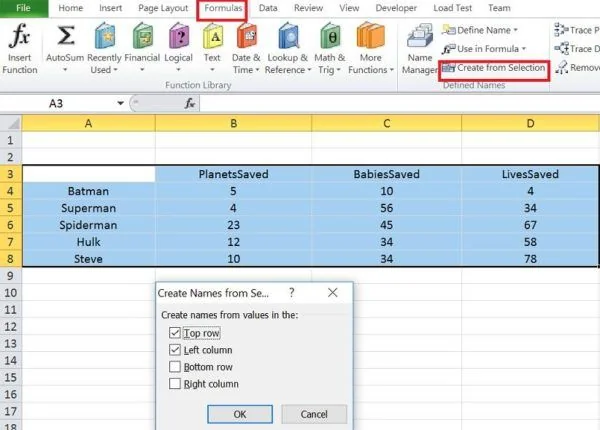
To do so, select the entire data in an Excel sheet and click on “Create from Selection” under “Formulas” tab. This would show the pop up with ‘Top Row’ and ‘Left Column’ values checked. Click ‘Ok’ and named ranges will be created.
2

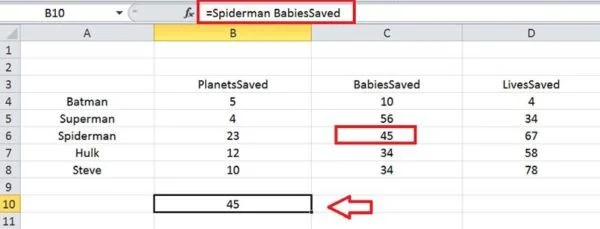
Now to find the value of the number of BabiesSaved by Spiderman, then the formula would contain only named ranges separated by space, hence using the intersect operator. So, the formula would look like “Spiderman BabiesSaved”. Hit enter and you could see the output as 45 which is a number of BabiesSaved by Spiderman.
3

What’s next?

This is really an awesome tip by Szilvia Juhasz. Using this tip we have learned that we can use Intersect operator instead of VLOOKUP in some scenarios. Let us know your views and if you have anything to add, please do share with us through comments.

Written by

Sridhar Belide
Sridhar BelideB.Tech. Computer Science, JNTUH10+ years in software engineering

Software Engineer, Wells Fargo

  • React
  • UI Frameworks
  • Front-end Development
Sridhar Belide is a skilled software engineer with over a decade of experience in the industry. Currently working at Wells Fargo since December 2018, he focuses on developing UI frameworks for front-end applications using React. Before joining Wells Fargo, Sridhar spent five years and four months at Tata Consultancy Services, where he held the position of IT Analyst. He also has experience as a Community Manager for Impact SoftTech Pvt. Ltd. EALP and as a Software Research and Development Engineer at NSN - Nokia Solutions and Networks. Sridhar holds a Bachelor of Technology (B.Tech.) in Computer Science from JNTUH, demonstrating his strong foundation in the field.

Read more articles by Sridhar Belide

Editorial standards

Fact Checking & Editorial Guidelines

Every article on Excel TV is held to a published editorial standard. The goal: accurate, current, and useful — without filler.

  1. Expert review. Drafts on technical Excel topics are reviewed by a contributor with hands-on, working knowledge of the feature being covered.
  2. Source validation. Claims about Excel behavior are tested in current Microsoft 365 builds. Third-party product claims are sourced from the vendor's own documentation.
  3. Disclosure. Affiliate links, sponsorships, and any commercial relationships that influenced a piece are disclosed in-line and at the foot of the article.
  4. Updates. Articles are revisited when Microsoft ships changes that affect the content. The most recent revision date is shown on every post.

Spot a problem? Email editor@excel.tv and we will look at it.

Subject-matter review

Reviewed by Subject Matter Experts

Technical Excel articles are reviewed by contributors with verifiable, hands-on experience in the topic — not generalist editors.

  • Qualified reviewers. Reviewers include Microsoft Excel MVPs, working business-intelligence practitioners, and Excel TV editorial staff. See each author's page for credentials.
  • Current to a known Excel build. Procedural articles state which Excel version they were validated against. Where Microsoft has since changed behavior, the article carries an inline update note.
  • Clarity check. Reviewers verify steps are reproducible by a reader at the assumed skill level — not just technically correct in a vacuum.

Want to contribute or review for Excel TV? See the about page.