
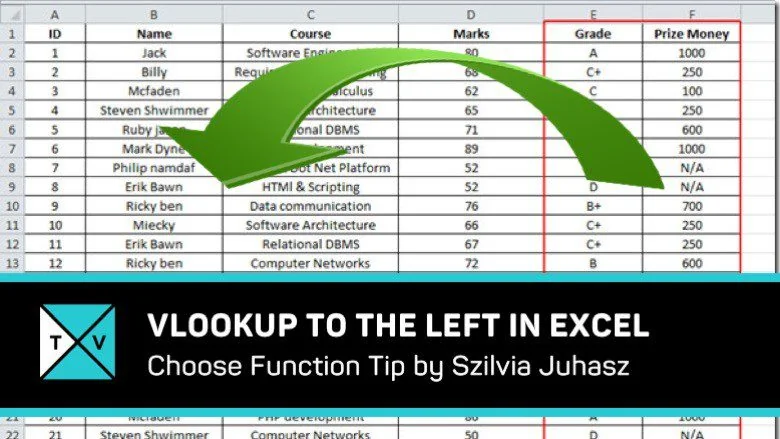
We all know that VLOOKUP works to the right (of the column with the lookup value). But what if we want to the ability to lookup a value tothe left?
One solution is to use INDEX and MATCH together. Well, there is another, more elegant solution. And Szilvia Juhasz (aka XSzil) is here to demonstrate its use to us.
So, let’s get started.
1 – The Excel Data
Look at the data in the image below. Suppose that you wanted to loop up the captain’s name given the team name. You will have to lookup to the left. If you also wanted to find the best week of that team using just the name, again you will have to lookup to the left.

2 – The VLOOKUP Function with Choose
The VLOOKUP to the left is actually very easy to implement. Just use the following syntax:
=VLOOKUP(lookup_value,CHOOSE({1,2},lookup_column,retrieve_column),2,FALSE)
This function will first find the ‘lookup_value’ in the ‘lookup_column’. Upon finding it, it will return the corresponding value from ‘retrieve_column’. The ‘FALSE’ stands for an exact match, just like when using ordinary VLOOKUP function.
3 – The Vlookup to the Left Usage
It’s easy to see now how one can use it to VLOOKUP to the left. Let’s say I have a team’s name and I want to lookup its captain’s name. Well, I will go through the following steps:
- I will set the ‘lookup_value’ to that team name, like we normally would do with a VLOOKUP function.
- Now, for ‘lookup_column’, I will select the “Team name” column.
- For ‘retrieve_column’, I will select the “Team Captain” column.
And, I am done. I have just used VLOOKUP to the left. Interesting, right?
4 – The Amazing Possibilities!
Notice the following two things:
- The ‘retrieve_column’ can be ANY column, not necessarily a column to the left. So, it could be on another sheet!
- The ‘retrieve_column’ does NOT have to have the same row numbers as the ‘lookup_column’. This means that if my ‘lookup_column’ is A1:A10, my ‘retrieve_column’ could be C7:C16! The size of the columns just needs to be the same.
So, my ‘retrieve_column’ could be on another sheet and not even in the corresponding place as my ‘lookup_column’. Now this is amazing!

Comments (3)
Historical comments preserved from the WordPress archive. Commenting is no longer active.
It would help the user to better understand this technique if there was an explanation about how the CHOOSE element works – particularly given that the Index_Num argument for that function is an array {1,2} rather than a single value. I could only get to grips with it by evaluating the CHOOSE function within the VLOOKUP, which populated the Values arguments with the Team/Captain combo’s.
not used excel for a while so updating my skills quite enjoyed working out what is going on in this sheet and looking at the formula so much easier when have pre existing data to work with – think i’ve got it but need to practice a bit more
Using Choose with Vlookup is a wonderful idea.