Excel TV ExcelTV

Format an Excel Form Control Label Font and Color

Updated

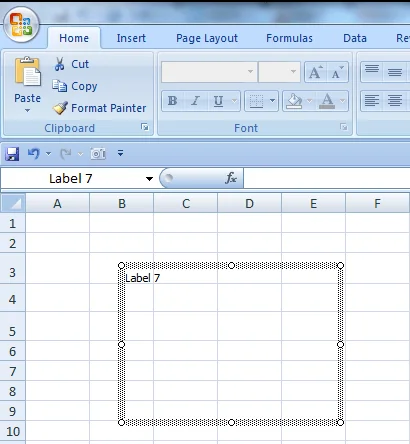
Anyone who has used a Form Control Label likely knows its limitations: you can’t increase the font-size, -color, or style.  Below, you can see that these formatting items have been “grayed out” in the Font group on the Excel Ribbon.

!

To be sure, the Label control has received a lot of flack for these deficiencies.  A look through some Excel forums shows suggestions to use a TextBox shape or an ActiveX Label instead of the hapless Label control.It’s a tragedy since the other form controls are lightweight and easy to use. Some forum posters even said Labels are best used to cover cells you don’t want the user to click. So sad.   

But things are looking up.  I’ve since discovered you can take a boring Label Control from this…

!

…to this!

!

How?

As it turns out, Labels take on the text-font and -size features of a referenced cell.  So, to make my label look this this, I simply linked it to a pre-formatted cell, like G2, below.

!

In fact, this is the same mechanism to link a Textbox shape to a cell.  The difference here is that a Textbox can take an unformatted cell and apply new formatting on the front-end, when it’s displayed to the user.  Above, we see that the cell must first be formatted, then linked.  In fact, whatever formatting exists in the cell when you first make the link, the label will maintain this format until a new link is created.  For example, if I were to change G2 to a black color and a smaller font, the label would not show these new changes (however, it would change its text if I changed the value in G2 to something else).  So to change the Label’s formatting — even when it’s linked to the same cell — you’ll need to click the label, click the formula bar, and retype the cell link.  

Admittedly, everyone else might have already figured this one out.  However, I’m still very excited.  Don’t get me wrong, Textbox Shapes are great, but having too many could become expensive on your spreadsheet, especially if you are constantly updating the screen (how many redraws can your computer handle before things start to slow?).  Labels, as Form Controls, inherently carry less bloat and overhead.  They’re perfect for dynamic dashboards.

Written by

Jordan Goldmeier
Jordan GoldmeierCo-founder, Excel TVFormer Adjunct Instructor, Wake Forest University

Consultant, Anarchy Data · Instructor, Full Stack Modeller

  • Excel
  • Financial Modeling
  • Data Visualization
  • Analytics
Jordan Goldmeier is an accomplished data professional with a wealth of experience across various industries. He currently serves as a consultant at Anarchy Data, where he assists businesses in maximizing the capabilities of Excel for financial planning and analysis. Jordan is also an instructor at Full Stack Modeller and a former Adjunct Instructor in Analytics at Wake Forest University. His extensive career has seen him hold positions as the Chief Operations Officer at Excel.TV, Data Science Manager at DataKind, Data Scientist at Dealer Tire and EY, Analytics & Data Vis Developer at The Perduco Group, and Operations Research Analyst at Booz Allen Hamilton. Jordan's background in data analytics and his passion for Excel make him a valuable resource for businesses seeking to improve their data-driven decision-making processes.

Read more articles by Jordan Goldmeier

Editorial standards

Fact Checking & Editorial Guidelines

Every article on Excel TV is held to a published editorial standard. The goal: accurate, current, and useful — without filler.

  1. Expert review. Drafts on technical Excel topics are reviewed by a contributor with hands-on, working knowledge of the feature being covered.
  2. Source validation. Claims about Excel behavior are tested in current Microsoft 365 builds. Third-party product claims are sourced from the vendor's own documentation.
  3. Disclosure. Affiliate links, sponsorships, and any commercial relationships that influenced a piece are disclosed in-line and at the foot of the article.
  4. Updates. Articles are revisited when Microsoft ships changes that affect the content. The most recent revision date is shown on every post.

Spot a problem? Email editor@excel.tv and we will look at it.

Subject-matter review

Reviewed by Subject Matter Experts

Technical Excel articles are reviewed by contributors with verifiable, hands-on experience in the topic — not generalist editors.

  • Qualified reviewers. Reviewers include Microsoft Excel MVPs, working business-intelligence practitioners, and Excel TV editorial staff. See each author's page for credentials.
  • Current to a known Excel build. Procedural articles state which Excel version they were validated against. Where Microsoft has since changed behavior, the article carries an inline update note.
  • Clarity check. Reviewers verify steps are reproducible by a reader at the assumed skill level — not just technically correct in a vacuum.

Want to contribute or review for Excel TV? See the about page.

Comments (4)

Historical comments preserved from the WordPress archive. Commenting is no longer active.

  1. Anonymous

    Awesome! I had a need to format a label in a worksheet and this tip was VERY timely! Thank you for taking the time to post for others.

  2. Anonymous

    It doesn't work for the background color 🙁

  3. Jordan Goldmeier

    I guess not – thanks for letting us know! If you really need the background color, the Camera control may prove useful instead.

  4. Anonymous

    Brilliant! Thanks.